
Watchlists in EZStockScreener v2 are not just ticker containers. They are review queues. The goal is to take symbols from screens, keep them organized, analyze them against latest EOD data, and decide which names are still worth attention.
This guide covers creating watchlists, editing lists, using tags and notes, running watchlist analysis, reviewing strongest and risk names, and exporting planning context for TradesViz.
Screenshot placeholder: Watchlists page showing saved watchlists, selected watchlist detail rail, symbol list, and analysis controls.
Where watchlists fit in the v2 workflow
The normal v2 flow is:
to Results
to Symbol Review
to Watchlist
to TradesViz planning or later review
A result table can return dozens or hundreds of symbols. A watchlist is where that broad result set becomes a manageable follow-up list.
Example: a momentum screen returns 42 names. You do not need to track all 42. Use the Results queues, open the strongest names, then create a watchlist for the 8 to 15 names you actually want to review again.
Create a watchlist from Results
The cleanest way to create a watchlist is from a Results page.
- Open a screen from Market Pulse or Screen Library.
- Review the Results table.
- Use the Priority, Watchlist-ready, or Risk review queue if needed.
- Click Create watchlist.
- EZStockScreener creates a watchlist from the current matched rows and opens it on the Watchlists page.
Screenshot placeholder: Results page with Create watchlist button and queue filter active.
This is useful because the watchlist keeps the screen context. You are not copying random tickers by hand. You are carrying a screened research list into the next step.
Create a watchlist manually
You can also create a watchlist directly from the Watchlists page.
- Open Watchlists.
- Click New list.
- Enter a watchlist name.
- Add symbols.
- Add optional tags and notes.
- Save the list.
Screenshot placeholder: New watchlist form with watchlist name, symbols, tags, and notes fields.
Symbol input can be comma-separated or line-separated. Use market suffixes where needed.
SHOP.TO
RELIANCE.NSE
BHP.AX
A practical watchlist name is specific. Instead of stocks, use something like US momentum review July or Dividend payout review.
Use tags
Tags make watchlists searchable and easier to sort mentally. The v2 page lets you search watchlists by name, tags, symbols, and notes. That means the tags you choose should describe why the list exists.
Good tag examples:
- momentum
- pullback
- quality
- dividend
- risk-review
- weekly-review
- tradesviz-plan
Example: a watchlist created from the Quality Growth in Uptrend screen could use tags like quality, hybrid, weekly-review. Later, searching for "quality" or "weekly" will bring it back.
Use notes
Notes are where you record what the watchlist is for. Keep them short and specific.
Useful note examples:
- Review only names still above 50 SMA after next EOD update.
- Exclude earnings within the next week before planning entries.
- Use this list for Monday review. Export final names to TradesViz plan.
- Risk review list. Do not trade unless trend improves.
Bad notes are vague. "Looks good" will not help you later. Write what condition needs to stay true or what action you plan to take.
The saved watchlists table
The main Watchlists table shows your saved lists. It includes watchlist name, symbol count, modified date, analysis status, tags, and actions.
Screenshot placeholder: Saved watchlists table showing list name, symbols, modified date, analysis state, tags, and selected row.
You can search watchlists and change row counts. You can also sort by fields like name, symbols, modified date, analysis, and tags. Select a watchlist to open its detail rail and symbol list.
The table is useful when you have many lists. For example, if you maintain separate watchlists for momentum, value, dividends, and risk review, the table search keeps them manageable.
The selected watchlist panel
After selecting a watchlist, the right-side detail panel shows the list details and next actions.
Depending on the state of the list, you can:
- Analyze the list against latest EOD data.
- Review the strongest names.
- Review risk names.
- Edit list details.
- Copy the list.
- Export a TradesViz plan CSV.
- Save or update tags.
- Save or update watchlist notes.
Screenshot placeholder: Selected watchlist detail panel showing tags, symbol preview, notes, and next actions.
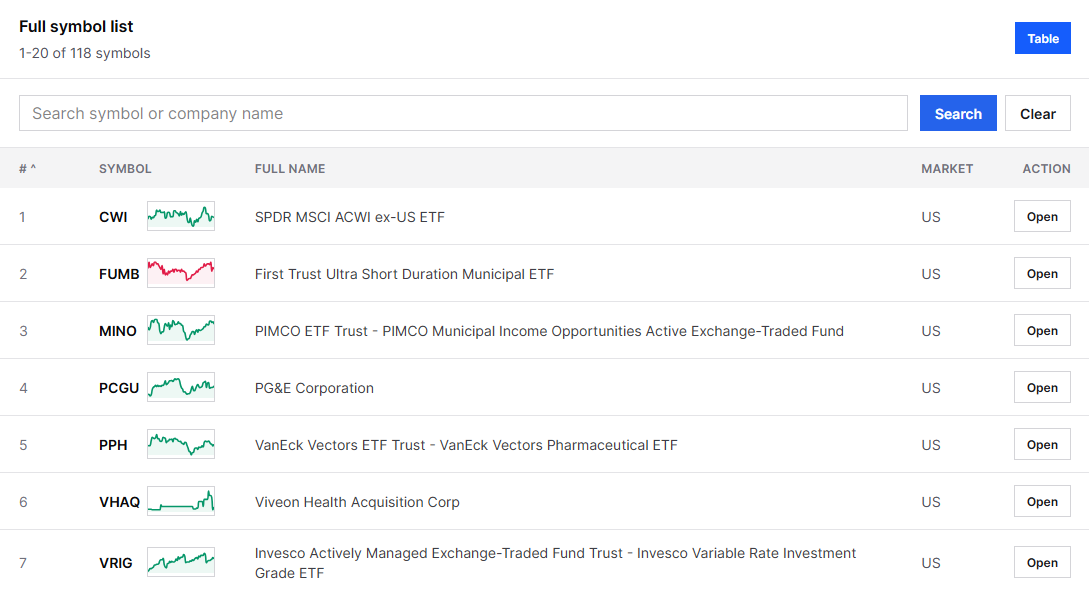
Full symbol list
The selected watchlist also shows a full symbol list. This table has symbol number, symbol, full name, market, and action. You can search within the symbols and open any symbol into Symbol Review.
Screenshot placeholder: Full symbol list table with AAPL.US, MSFT.US, and NVDA.US rows.
Example: if your watchlist contains AAPL.US, MSFT.US, NVDA.US, click any row to open Symbol Review. The review page will show the symbol in the context of the watchlist, not as a disconnected ticker lookup.
Analyze a watchlist
The Analyze action builds a latest EOD snapshot for the selected list. This is one of the most important v2 watchlist features because it turns a static list into a review queue.
After analysis, v2 can show:
- Gainers and decliners.
- High-liquidity names.
- Risk-review names.
- Sector mix.
- Strongest names.
- Risk review table.
Screenshot placeholder: Watchlist analysis completed notice, sector mix, strongest names, and risk review sections.
Only one watchlist analysis is allowed to run at a time for the user. If one list is being analyzed, other analysis controls are temporarily locked. This avoids starting multiple overlapping EOD analysis jobs.
How to read the analysis
Do not treat analysis as a buy list. Treat it as a triage tool.
Start with:
- Sector mix: Check whether your list is concentrated in one area.
- Strongest names: Review symbols with better trend, liquidity, and score first.
- Risk review: Decide whether weak names should be removed, ignored, or watched separately.
Example: if your momentum watchlist is 70% technology and semiconductor names, that may be fine if you want that exposure. But it should be a conscious decision, not something you discover after taking trades.
Edit a watchlist
Use Edit list when you want to change the watchlist name, symbols, tags, or notes. This opens the edit form with the existing values loaded.
Screenshot placeholder: Edit watchlist form with existing symbols, tags, and notes.
Common edits:
- Remove names that no longer match your process.
- Add symbols from manual research.
- Rename the list after narrowing it.
- Add a note with the next review date or rule.
- Add a tag for the current market regime.
Copy a watchlist
Copying a watchlist creates a new list with the same symbols, tags, and notes. This is useful when you want to preserve an original list and create a working version.
Example:
- Copy US quality review.
- Rename the copy to US quality review filtered.
- Remove names with weak trend or low liquidity.
- Export only the filtered list to TradesViz planning.
Export a TradesViz plan CSV
The selected watchlist panel has Export plan CSV. This creates a CSV for the full watchlist. The export includes symbol, market, setup name, plan status, notes, and an EZSS review path.
Screenshot placeholder: Watchlist next actions section showing Export plan CSV.
This is useful when your watchlist is ready for planning. The watchlist notes become part of the exported context, so write notes that will still make sense inside TradesViz.
Single-symbol watchlists
Symbol Review can also create a one-symbol watchlist. This is useful when a symbol deserves follow-up but does not belong in an existing list yet.
Example: you are reviewing ADBE.US from a value screen. The setup is not ready for a trade, but the valuation and balance sheet are interesting. Save the symbol from Symbol Review. v2 creates a watchlist named around that symbol and stores the review reason in the note.
A practical watchlist routine
Here is a simple routine that works well:
- Start from Market Pulse or Screen Library.
- Open Results and filter to Watchlist-ready.
- Create a watchlist from the filtered list.
- Open the watchlist and add tags.
- Add a note that defines the next review condition.
- Run analysis after the next EOD update.
- Review strongest names first.
- Review risk names separately.
- Export final candidates to TradesViz plan CSV.
The main point is discipline. A watchlist should reduce noise, not become a dumping ground for every ticker that looked interesting for five seconds.