
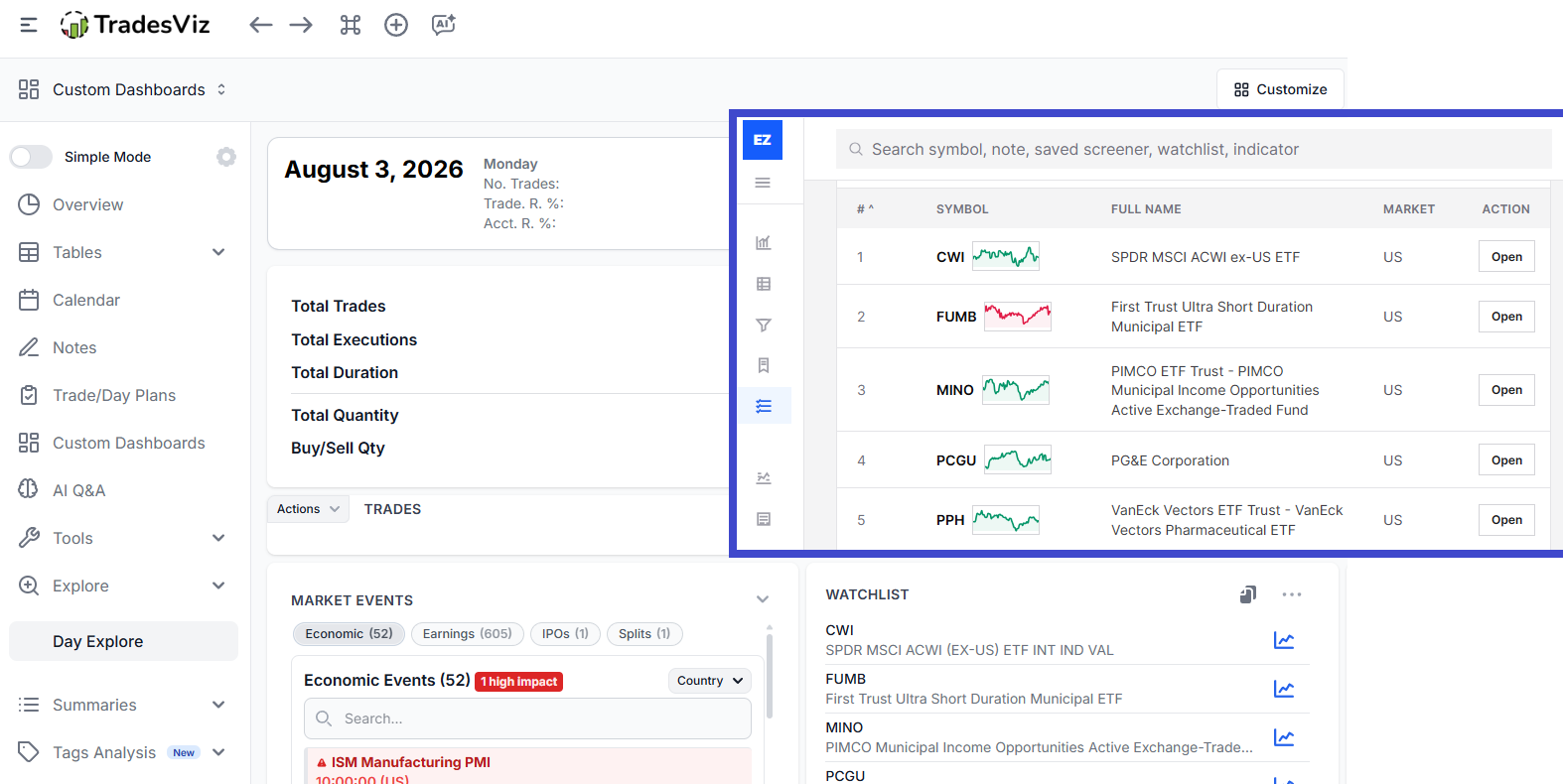
EZStockScreener v2 is built to support the pre-trade side of the TradesViz workflow. The goal is simple: find ideas, understand why they matched, save the names worth tracking, and carry the setup context into TradesViz planning and journaling.
The current v2 handoff is CSV-based. You can export plan CSV files from Results, Symbol Review, and Watchlists. The CSV keeps the symbol, setup, score, risk, liquidity, reason, notes, and EZSS review path together so the idea does not lose context when it moves into TradesViz.
Screenshot placeholder: V2 sidebar footer showing the TradesViz loop panel and Open TradesViz link.
The full loop
The intended loop is:
Review evidence and symbol context
Save to watchlist
Validate with backtest when needed
Export TradesViz plan CSV
Use TradesViz for planning, notes, execution review, and journaling
This is different from exporting a plain ticker list. A ticker list tells you what symbols you liked. A v2 plan export tells you why they were on the desk.
Where TradesViz appears in v2
TradesViz is visible in several places:
- The left sidebar footer has a TradesViz loop section and a link to open TradesViz.
- The profile menu includes a TradesViz link.
- Results pages include a TradesViz plan action.
- Symbol Review includes an Export plan CSV action for a single symbol.
- Watchlists include an Export plan CSV action for the selected list.
- Backtest run detail includes export for the backtest trade rows.
Screenshot placeholder: Results page action row showing Export CSV and TradesViz plan buttons.
What the plan CSV contains
The v2 TradesViz plan export includes these columns:
- symbol
- company
- market
- source
- setup
- score
- last_price
- move
- trend
- liquidity
- risk
- why_matched
- plan_status
- notes
- ezss_review_path
The most important columns are setup, why_matched, risk, notes, and ezss_review_path. Those are the fields that preserve the reasoning.
Example row context:
Source: EZSS v2 Results
Setup: 20-Day High With Volume
Score: 91
Trend: Strong
Liquidity: High
Risk: Normal
Why matched: 20-day high, volume above average, above 50 SMA
Plan status: review
That is much better than exporting only NVDA.US. When you review the idea later, you know what signal caused it to enter the list.
Flow 1: Export a full results table
Use this flow when you want to move a screen result into TradesViz planning.
- Open Market Pulse or Screen Library.
- Run a screen such as 20-Day High With Volume or Quality Growth in Uptrend.
- Open the Results page.
- Use the queue filters if needed, such as Priority or Watchlist-ready.
- Click TradesViz plan.
- Download the CSV.
- Use the file as planning context in TradesViz.
Screenshot placeholder: Results page with Watchlist-ready queue active and TradesViz plan button highlighted.
Example: the full momentum result has 42 rows. You do not want all 42 in your plan. Switch to Watchlist-ready, then export. The exported CSV now reflects the narrower review queue.
Flow 2: Export one symbol from Symbol Review
Use this flow when you only want to plan one idea.
- Open a symbol from a Results row.
- Review the chart, technical readout, matched evidence, fundamentals, and checklist.
- Add a symbol note if needed.
- Click Export plan CSV.
- Use the single-symbol CSV as planning context in TradesViz.
Screenshot placeholder: Symbol Review page showing Export plan CSV in the top action bar and next actions rail.
Example: ADBE.US matched a value screen. You open Symbol Review and decide it is worth tracking, but not ready for a watchlist yet. Export a single-symbol plan CSV so the reason is documented while you continue research.
Flow 3: Export a watchlist
Use this flow when the watchlist is already your final planning queue.
- Open Watchlists.
- Select the watchlist.
- Run analysis if you want latest EOD context.
- Review strongest names and risk names.
- Edit the list if needed.
- Click Export plan CSV.
- Use the watchlist export in TradesViz.
Screenshot placeholder: Watchlist next actions panel showing Create TradesViz plan and Export plan CSV.
Watchlist exports use the watchlist name as the setup and the watchlist note as the notes field. That means the quality of your watchlist name and notes matters.
Good watchlist name:
Good watchlist note:
This creates a more useful TradesViz planning file than a generic list called "watchlist 3".
Flow 4: Use backtest exports before planning
Backtest exports are not the same as plan exports. They contain backtest trade rows. Use them when you want to inspect historical rows before deciding whether a screen deserves planning attention.
- Open Backtests.
- Select the market, screen, range, entry, and exit.
- Run the backtest.
- Open the run detail.
- Export trades.
- Review the rows before promoting the setup into a live watchlist or TradesViz plan.
Screenshot placeholder: Backtest run detail page showing Export trades and trade rows table.
Example: if Quality Growth in Uptrend has a reasonable 1-year result but a weak 6-month result, you may still use it as a research list, but avoid treating it as a direct entry signal.
How to use the CSV in TradesViz
The exact TradesViz action depends on your planning process, but the clean workflow is:
- Open TradesViz.
- Create or update the trade plan, watchlist, or note workflow you use.
- Use the CSV rows as the planning source.
- Keep the EZSS setup name in the plan or note.
- Keep the EZSS review path when you want to reopen the symbol context.
- After the trade is taken and journaled, compare the outcome against the original setup.
The point is attribution. If you trade a symbol that came from a screen, the journal should show that source. Otherwise, it becomes hard to answer whether your screening process is helping or just creating more activity.
Recommended tags
Use consistent tags in EZSS and TradesViz so you can review outcomes later.
Examples:
- ezss-v2
- momentum
- pullback
- quality
- value
- dividend
- risk-review
- watchlist-ready
- tradesviz-plan
Example: a trade from the 20-Day High With Volume screen could use tags ezss-v2, momentum, watchlist-ready. A trade from Reasonable Value With Earnings could use ezss-v2, value, fundamental.
What to review later in TradesViz
Once trades have been journaled, review the results by setup source.
Useful questions:
- Which EZSS screens produced the most reviewed plans?
- Which screens produced trades you actually took?
- Which screens had the best average outcome?
- Which screens created too much noise?
- Were losses concentrated in a specific queue, such as risk-review names?
- Did watchlist-ready names perform better than the full result list?
This is the reason to keep setup names and notes consistent. Without that, the link between discovery and outcome gets lost.
A complete example
Here is a full EZSS to TradesViz flow:
- Open Screen Library.
- Filter to Momentum.
- Open 20-Day High With Volume.
- In Results, switch to Watchlist-ready.
- Open Symbol Review for the top names.
- Create a watchlist called US momentum watchlist-ready.
- Add note: "Only plan names still above 50 SMA. Avoid earnings risk."
- Run watchlist analysis after the next EOD update.
- Export plan CSV from the watchlist.
- Open TradesViz and use the CSV as planning context.
- Tag the related plans or trades with ezss-v2 and momentum.
- After trades are journaled, review whether this screen is worth keeping.
The workflow is intentionally simple. Find ideas in EZSS, keep the reason attached, plan and journal in TradesViz, then review whether the process is actually useful.